
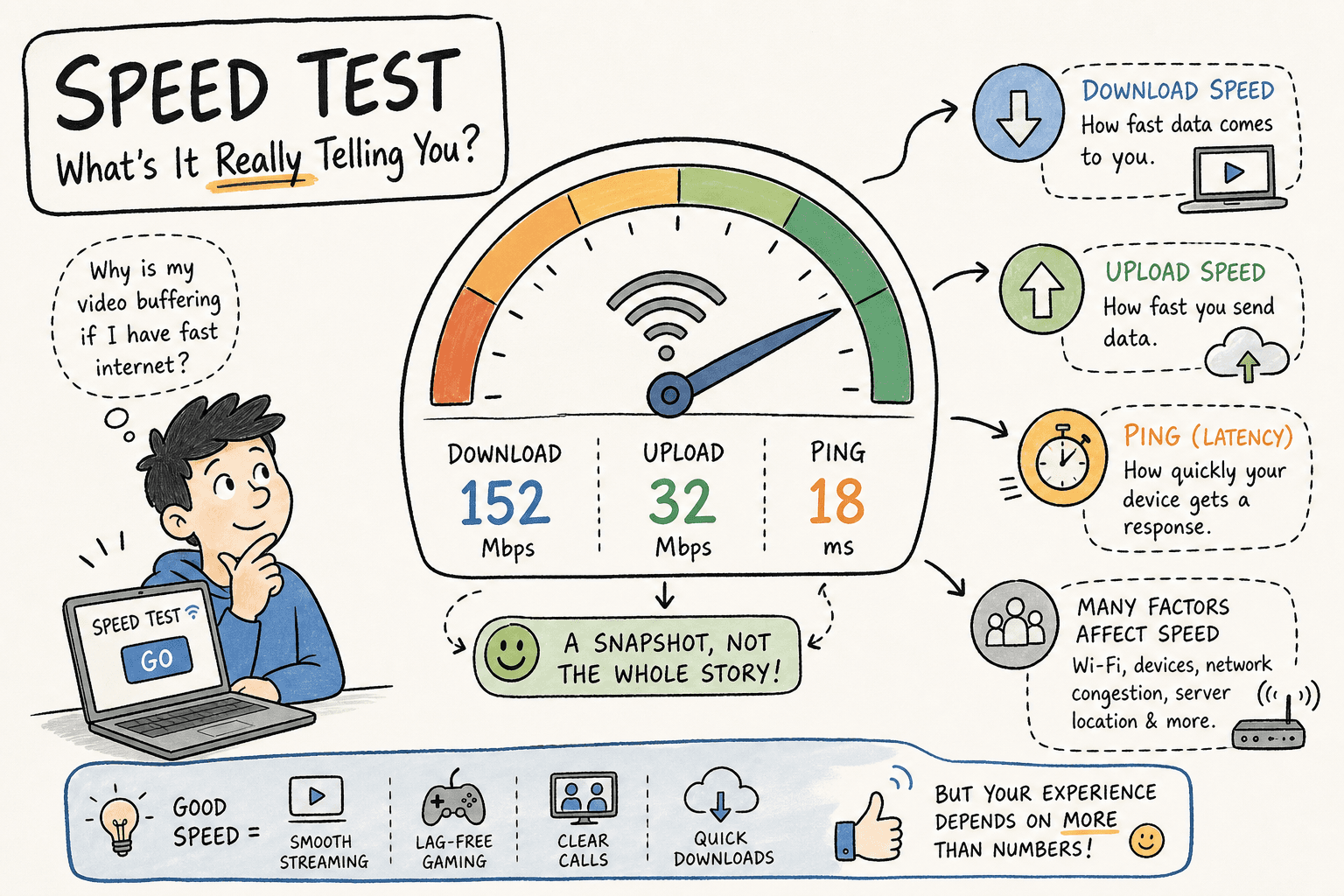
You click "go" on a speed test, numbers start flying across the screen, and 30 seconds later you're staring at "94.3 Mbps / 11.8 Mbps / 18ms." Cool. But what does any of that actually mean for your life? Does 94 Mbps mean your Netflix will stop buffering? Will your Zoom call finally stop freezing? The answer depends entirely on which numbers you look at and how you read them, especially the balance of download vs upload speed. If you've ever wondered how to check your internet speed test results and actually understand them, this guide walks you through every number, what it measures, what it means, and what to do when it looks wrong.
A speed test isn't just one number. It's a snapshot of four different things happening on your connection at once, and each one tells a different story. If you're learning how to run an accurate internet speed test, tools like VROOOMS Speed Testmake this process genuinely useful, with a sports car-themed interface that turns a routine diagnostic into something you'll actually want to run. No app to install, no account to create. Just open your browser, pick your car, and go.
For more on why engaging tools improve data quality, read about why fun speed tests get you better data.
Run the speed testBack to homepage
The four numbers your speed test shows you
Many users glance at the download speed and close the tab. That's a mistake, because the other three numbers often explain more about your connection than the big one does. Understanding all four takes about two minutes, and it'll change how you read every test result going forward.
Download speed: the number everyone watches
This is how fast data moves from the internet to your device, measured in megabits per second (Mbps). It drives everything you consume online—streaming video, loading web pages, pulling down large files. Higher is better, and activities like 4K streaming and large downloads depend heavily on this number.
Upload speed: the one most people ignore
Upload measures how fast data moves from your device out to the internet. It matters most for video calls and live streaming. Most home connections are asymmetric, meaning upload is significantly slower than download, which is why Zoom can look fine on your end but choppy on theirs.
Latency and jitter: the pair that gamers obsess over
Latency (also called ping) is the round-trip time in milliseconds for a signal to travel from your device to a server and back. Jitter measures how much that round-trip time varies from one moment to the next. High latency makes games feel laggy. High jitter makes video calls stutter even when your speeds look fine on paper. For a deeper technical explanation, see this guide to jitter vs latency. Want to line up against someone on a similar plan? You can also race someone in VROOOMS Race Rooms.
How to run an accurate internet speed test
Running a bandwidth test on a congested network at the wrong time with six devices active will give you misleading results. Two minutes of prep makes the difference between a number you can trust and a number that lies to you.
Before you hit start
Close every app, browser tab, and background sync process on the device you're testing. Pause any downloads or cloud backups running quietly in the background. Then disconnect or put to sleep every other device on your network—phones, tablets, smart TVs. This isolates your test device so the result reflects your full available bandwidth, not a shared slice of it.
Wired vs. Wi-Fi: which matters for your test
A wired Ethernet connection gives you the most accurate picture of what your ISP is actually delivering to your home. A Wi-Fi test shows you what your device is receiving after signal loss, distance, and interference take their cut. Test both if you can. The gap between the two numbers tells you whether your problem is your ISP or your home network setup.
How to run an internet speed test step by step
Once your setup is clean, you're ready to run an internet speed test. The actual download and upload portions take less than a minute. If you'd rather use a single-button quick test instead of a multi-metric tool, try the Fast.com speed check. Here's how to do it with VROOOMS Speed Test, a free browser-based tool.
Opening VROOOMS and starting your test
Open VROOOMS Speed Testin your browser. You'll land on a car-themed dashboard where you can pick a nickname-only ride as your visual theme—no logos, just attitude. Then hit the test button. The tool runs real HTTPS requests to measure your connection, so the results reflect how your network actually performs during normal web activity, not under artificial lab conditions.
Reading your results screen
When the test finishes, you'll see four clearly labeled numbers: download speed, upload speed, latency, and jitter. VROOOMS adds plain-language context below each metric explaining what that specific number means for real-world use. You don't need to already know what "jitter" means—the tool tells you right there on the screen.
Run it three to five times
One test is a snapshot. Running three to five tests across different times of day gives you a reliable pattern. If your numbers are consistent, that's your real connection. If they swing wildly between runs, something is causing instability, and that's worth investigating before you call anyone.
What "good" actually looks like for streaming, gaming, and calls
The numbers on your screen only mean something when you compare them to what your activities actually need. Here's what the benchmarks look like for the most common use cases.
Streaming: when HD and 4K are the goal
For HD (1080p) streaming, you need roughly 5–25 Mbps download per stream. For 4K, that jumps to 25 Mbps or more per device—Netflix has historically recommended around 15 Mbps for HD, while Disney+ targets 25 Mbps for 4K. If multiple people are streaming simultaneously, multiply accordingly. A single 4K stream while someone else video calls can push past 35 Mbps without breaking a sweat. For a concise breakdown of recommended download and upload rates for different streaming qualities, see Optimum's guide to good download and upload speeds. If you're planning your internet speed for streaming across a busy household, leave headroom so background updates and smart devices don't interrupt playback.
Gaming: why latency beats download speed every time
For online gaming, your download speed matters far less than your ping. A 100 Mbps connection with 80ms latency will feel worse in competitive play than a 25 Mbps connection with 15ms latency. Target under 50ms for smooth gameplay—anything above 100ms and you'll notice the lag. Keep jitter as low as possible; for gaming and real-time play, many sources recommend aiming for under 30ms or keeping variability to under 15% of your base latency. When evaluating internet speed for gaming, prioritize low latency and jitter over headline Mbps.
Video calls: the upload speed trap
Most bandwidth guides focus on download, but video calls live or die on upload speed. For a solid HD video call on Zoom or Teams, vendor guidance generally points to at least 3–5 Mbps upload per active stream for basic HD quality. If you're screen sharing at the same time, requirements can climb significantly—often 10 Mbps or more, and potentially higher depending on the service and quality settings you're running. If your calls look fine on your screen but the other person says you're choppy, your upload number is the first place to look.
How your results compare to what your ISP promised
Your ISP sells you a plan with a number like "100 Mbps" or "500 Mbps." Your speed test almost never matches that exactly, and that's not automatically a problem. But there's a threshold where underperformance becomes worth acting on.
Why the gap between advertised and actual speed is normal
ISPs advertise "up to" speeds—the theoretical maximum under ideal conditions. Real-world delivery is always lower due to network congestion, your connection type (DSL, cable, fiber), and the equipment in your home. Expect to receive 70–90% of your advertised speed on a solid wired test. Consistently landing below 50% of what you pay for is a problem worth documenting.
How to document your results if you need to contact your ISP
Run at least five wired tests at different times of day, including during peak evening hours. Screenshot each result showing the timestamp, server location, and all four metrics. VROOOMS displays this information clearly on the results screen, so capturing it takes seconds. This documentation gives your ISP a specific, evidence-based report rather than a vague complaint, which tends to get you faster resolution.
What to try when your numbers come back low
Most slow connection problems have a fix you can run yourself before involving your ISP, and the checklist is shorter than you'd think.
Start with the quick stuff
Restart your router and modem by unplugging them for 30 seconds. Check all cables for damage or loose connections. Move your device physically closer to the router and retest. Update your router's firmware if it hasn't been done recently. These steps resolve a surprising percentage of slow connection complaints, and they cost nothing to try. If you're not sure what's causing the slowdowns before contacting your ISP, this resource explains common causes and troubleshooting steps for why your internet may be slow. These simple checks often fix slow internet speed without a service call.
When to escalate to your ISP
If your wired speed test consistently comes back at less than 50% of your advertised plan, and restarting your equipment doesn't change it, contact your ISP with your documented results. Give them the connection type, the times you tested, and the specific numbers. Providers take complaints more seriously when you arrive with evidence rather than just "my internet feels slow."
How to check internet speed test results, and actually use them
Running a proper internet speed check takes about five minutes once you know the steps. Prep your device, close everything, plug in if you can, then run your test. Read all four numbers, not just download. Compare what you see against what your activities actually need.
VROOOMS Speed Testmakes this whole process approachable, even if you've never done it before. No signup, no app—just open the browser, pick your car, and get a clear picture of what your connection is actually doing. The sports car theme is a bonus, but the real value is knowing exactly what each number means the moment the test finishes.
Once you know how to check your internet speed test results and read them properly, you stop guessing—and the fixes become obvious.
Q&A
What do the four numbers on a speed test (download, upload, latency, jitter) actually measure and why do they matter?
Download is how fast data comes to you (streams, web pages, downloads); higher is better. Upload is how fast data leaves your device (video calls, live streams); it's often much lower than download on home plans, which is why others may see your Zoom as choppy even if it looks fine to you. Latency (ping) is the round-trip time in milliseconds; high latency makes games feel laggy. Jitter is how much that latency varies; high jitter causes stuttery calls and real-time hiccups even when Mbps looks good.
How do I run an accurate internet speed test and avoid misleading results?
Before testing, close apps/tabs, pause downloads and cloud backups, and disconnect or sleep other devices so your test device isn't sharing bandwidth. If possible, run a wired Ethernet test for the clearest view of what your ISP delivers, then also test over Wi-Fi to see what your device actually gets after signal loss and interference. Run three to five tests at different times of day—one result is a snapshot; a small series reveals the real pattern.
What counts as "good" for streaming, gaming, and video calls?
Streaming: For HD (1080p), roughly 5–25 Mbps download per stream; for 4K, 25+ Mbps per device. Multiply for simultaneous streams and leave headroom for updates and smart devices.
Gaming:Prioritize low latency over high Mbps. Target under 50 ms for smooth play; above 100 ms you'll notice lag. Keep jitter low (aim under ~30 ms or variability under ~15% of base latency).
Video calls: Upload matters most. Plan for about 3–5 Mbps upload per active HD stream; screen sharing can push needs to 10 Mbps or more depending on service and settings.
My speed test is lower than my plan's number. Is that normal, and when should I contact my ISP?
Plans are advertised as "up to" speeds, so real-world results are typically lower due to congestion, connection type, and home equipment. On a solid wired test, 70–90% of the advertised rate is common. If you're consistently under 50% of what you pay for, document it and reach out. Run at least five wired tests at different times (including peak evenings) and screenshot each result with timestamp, server location, and all four metrics—clear evidence speeds up resolution.
How can I tell if slowdowns are from my ISP or my home Wi-Fi?
Compare wired vs. Wi-Fi results. If your wired speed is strong but Wi-Fi is much lower, the issue is likely your home network (signal loss, distance, interference). Try quick fixes: restart modem/router, check cables, move closer to the router, and update firmware—then retest. If both wired and Wi-Fi are low (and remain under ~50% of your plan across multiple tests), the bottleneck is likely on the ISP side—escalate with your documented results.