
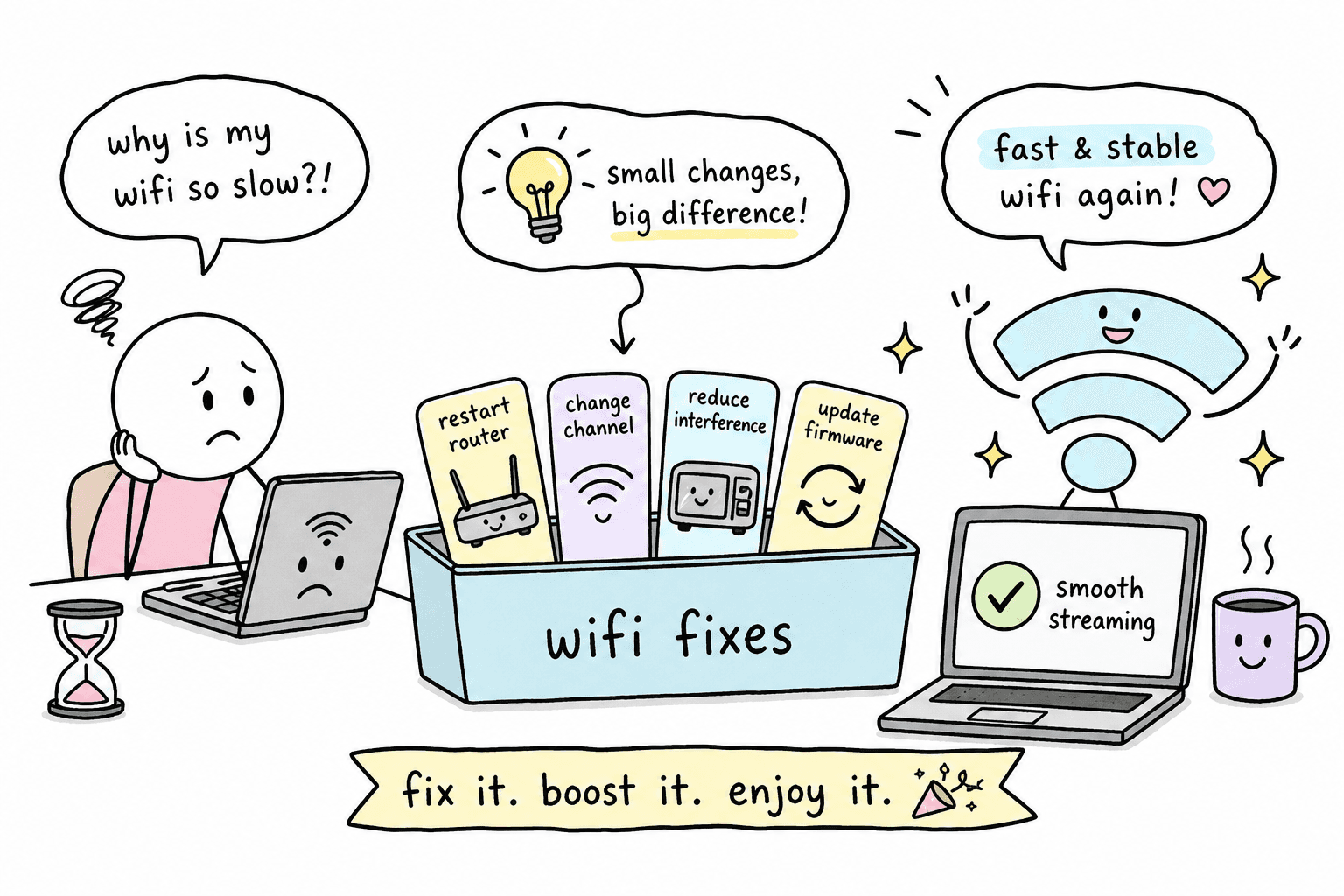
You're in the middle of a video call and your face freezes mid-sentence. Or you're three episodes into something good and the buffer wheel starts spinning. Slow WiFi feels random and personal, like it's targeting you specifically. But it almost always has a fixable cause, and most of the time, the fix is simpler than you think. This slow WiFi fix guide walks you through every solution in order, from a two-minute restart to a full hardware upgrade, so you're not guessing.
The fixes below are ranked from easiest to most involved. Some take under two minutes. Others take ten. The quick ones solve the problem far more often than people expect. Before you change anything, though, there's one step that makes every fix in this guide actually useful.
Measure your speed first: the baseline step most people skip
"Feels slow" is not a diagnosis. It's a feeling, and feelings are unreliable when you're troubleshooting. Experienced troubleshooters always benchmark before they change anything, because without a number, you have no idea whether what you just did helped at all.
The fix-test-repeat loop is simple: run a speed test, apply one change, run the test again, compare. This feedback loop turns guesswork into a process, and a single speed test usually wraps up in well under a minute. The metrics to watch are download speed (how fast data comes to you), upload speed (how fast data leaves), and latency, specifically ping and jitter, which matter a lot for calls and gaming. If you want a short primer on testing methodology before you begin, see this guide on how to test your internet speed.
VROOOMS Speed Test is a free, browser-based tool that measures all four of those metrics in one session with no signup and no app to install. Run your first test while connected to WiFi near the router. Then plug in an Ethernet cable and run it again. If your wired speed is fast and your WiFi speed is not, the problem lives inside your home. If both are slow, the problem is coming from your ISP. That single comparison tells you exactly which half of this guide to focus on.
Slow WiFi fix: quick wins that solve most complaints
The three fixes below handle the majority of slow WiFi complaints. Start here before you touch any settings or buy any hardware.
The right way to restart your router (it's not what you think)
Most people flip the power off and back on immediately. That doesn't do much. The proper method is to unplug both your router and your modem, wait a full 30 seconds, plug the modem back in first and wait for its lights to stabilize, then plug the router back in. That 30-second wait lets the capacitors discharge fully, which means the device actually starts fresh rather than picking up where it left off with stale memory and congested channel assignments. This one fix often resolves slow WiFi complaints, especially if you haven't restarted your router in weeks.
Switch from 2.4GHz to 5GHz (or use the right one for the right device)
Your router probably broadcasts on two frequencies, and they behave very differently. The 2.4GHz band travels farther but gets crowded fast. Every microwave, baby monitor, and neighbor's router competes on the same narrow slice of spectrum. The 5GHz band is faster and less congested, but it doesn't travel as far through walls. For most devices, 5GHz is the better choice.
Connect your laptop, phone, and streaming devices to the 5GHz network. Let your smart plugs, thermostats, and other IoT gadgets stay on 2.4GHz, they don't need the speed. If your router shows a single network name for both bands, you can separate them in the wireless settings of your router admin page, which gives you full control over which devices go where.
Finding and removing bandwidth hogs on your network
Open a browser and go to 192.168.1.1 or 192.168.0.1 to reach your router's admin panel. Look for a connected devices or traffic statistics section, keep in mind that many basic routers show only a device list without per-device bandwidth data, so check whether your model supports it or download the manufacturer's companion app. You're hunting for surprises: an old tablet running a backup, a smart TV downloading an update, a security camera streaming continuously. Disconnect the heaviest users one by oneand run a VROOOMS speed test after each disconnection. You'll see quickly when you've found the culprit.
Router placement and interference: fixes hiding in plain sight
Physical placement is one of the most underestimated causes of slow WiFi, and it's also one of the easiest things to fix for free. Most people put their router wherever the cable reaches, which is rarely the right place.
Where your router actually belongs
Central, elevated, and out in the open. Not in a cupboard. Not on the floor behind your TV stand. Not pressed against an exterior wall where half the signal radiates outside. Every wall a signal passes through costs you speed, and the cost varies: drywall is a minor tax, concrete is brutal, and metal basically stops the signal cold. A practical rule: if you have to squeeze through a doorway to get to your router, it's probably in the wrong place.
That material difference matters more than most people realise, moving a router from a concrete-walled closet to an open central shelf can recover speed without touching a single setting. Keep it away from microwaves and baby monitors (both run on 2.4GHz), away from cordless phones, and ideally off the floor. A shelf at mid-room height with clear line of sight to most of the space is the goal.
Wi-Fi dead zone fix: tackling the neighbor network problem
Too many routers broadcasting on the same channel creates a traffic jam in the air. A free WiFi analyzer app, WiFi Analyzer on Android or Acrylic WiFi on Windows, shows you a map of which channels your neighbors are using. On 2.4GHz, the standard non-overlapping options in most regions (including North America) are channels 1, 6, and 11; regulatory rules differ in some parts of Europe and Japan, so check your local guidance if you're outside North America. Pick whichever channel your neighbors are using the least. On 5GHz, there are far more channel options with much less overlap, which is another reason to prefer it.
Log into your router admin page, go to wireless settings, and change the channel manually. Then run a speed test to confirm the improvement. In congested apartment buildings, this fix alone can make a noticeable difference.
Slow WiFi fix: router settings that unlock faster speeds
Once placement is sorted, a few settings inside your router can squeeze out significantly more performance without spending a penny.
Channel width: the setting that quietly limits your speed
On 2.4GHz, keep your channel width at 20MHz. Wider widths absorb more interference in crowded environments, which makes things worse, not better. On 5GHz, 80MHz is the sweet spot for most homes, strong throughput without needing perfect spectrum conditions. You'll find this setting under wireless or advanced wireless in your router admin page, labeled as channel bandwidth or channel width depending on the brand.
QoS: telling your router which devices matter most
QoS sounds intimidating but it's really just telling your router who gets to go first. You can assign high priority to your work laptop during video calls, your gaming console during matches, or your streaming device during movie night. When your kid starts a large download at the same time you're in a Teams call, QoS makes sure your call traffic jumps the queue.
Enable QoS in router admin settings and assign high priority to your most critical devices by MAC address or IP. Not all budget routers support QoS, but most mid-range models do. Check under advanced settings or traffic management.
Firmware updates: the fix almost nobody runs
Your router runs software, and old software means bugs, security holes, and inefficient traffic handling. Check your firmware version by logging into the admin page and looking under advanced or system settings. Most modern routers have a one-click auto-update option. TP-Link uses the Tether app; Asus uses Administration, then Firmware Upgrade; Netgear and Linksys have dashboard options in their web interfaces. Run a speed test after updating, on older routers, the improvement can be noticeable right away. For step-by-step instructions, see this guide on how to update your router's firmware.
When the problem needs a hardware fix: extenders, mesh, and access points
If you've worked through every fix above and still have rooms where WiFi is weak or dead, the issue is coverage. Here are three options at different price points, each with a genuine trade-off worth knowing before you buy.
A WiFi extenderis the cheapest option, running roughly €20 to €80. It's a reasonable fix for one specific dead zone with minimal devices. The honest trade-off: extenders cut your available bandwidth roughly in half because they use the same radio to receive the signal and rebroadcast it. They work fine for a guest bedroom or a far corner of the house, but they're not a great choice if you need consistent speed for streaming or calls.
A mesh system(such as TP-Link Deco, Eero, or Netgear Orbi) typically runs €150 to €500 for a two- to three-node kit. It uses a dedicated backhaul channel to keep nodes communicating at full speed, so your devices don't take a bandwidth hit as they roam. You get one network name, seamless handoff between nodes, and app- managed placement guidance. For larger homes or multi-floor apartments with persistent dead zones, a two-node mesh is a practical middle ground between cost and real performance. If you're weighing the trade-offs between extenders and mesh systems, this comparison explains the differences in depth: Wi-Fi extender vs. mesh: which is better?
A wired access pointis the fastest and most reliable option if you can run an Ethernet cable to the location, no wireless bottleneck at all. Units typically cost €50 to €200 plus cabling. Most people don't want to run cable through walls, but if you're willing to, this delivers the most consistent coverage of the three options.
When slow WiFi is actually a slow ISP (and what to do about it)
Sometimes you do everything right and speeds are still well below what you're paying for. That's when the problem isn't inside your home at all.
The wired vs. wireless test that tells you everything
Plug your laptop directly into the router with an Ethernet cable and run a speed test. If wired speed matches your plan but WiFi is slow, the issue is local and everything in this guide applies. If wired speed is also well below your plan, the problem is coming from outside your home. Run this test at different times of day, ISP congestion often shows up specifically during evening hours when the whole neighborhood is online.
How to use your speed test results when contacting your ISP
Use VROOOMS Speed Test to run three tests at different times of day on a wired connection, noting your download and upload readings alongside what your contract specifies. Screenshot the results. ISPs respond much faster when you arrive with data rather than a vague complaint.
Say it exactly like this, ISP reps respond to documented numbers, not general frustration: "I've tested via Ethernet at multiple points throughout the day and I'm consistently receiving X Mbps against my contracted Y Mbps." If your speeds show a persistent and substantial shortfall below your contracted rate, you have a documented case to request a line check, an engineer visit, or compensation. For more on common ISP-side causes and how providers can affect your speeds, see this article on why your internet might be slow. Check your provider's terms or your national telecoms regulator for the specific threshold that applies to your contract.
Start simple, fix fast, test as you go
Most slow WiFi problems get solved in the first two or three steps of this guide. A proper restart, a band switch, or a placement change handles the majority of cases. If those don't do it, router settings like channel selection, QoS, and a firmware update often finish the job. Hardware upgrades are the last resort, not the first move.
VROOOMS Speed Testis the thread running through this whole slow WiFi fix process. Test before, fix something, test again, compare the numbers. That simple loop stops you from guessing and tells you exactly whether what you just did actually worked. Slow WiFi isn't permanent, it's a puzzle with a solution, and now you have the right tools and the right order to crack it.
Frequently asked questions
How do I fix slow WiFi at home?
Start with a proper router restart (unplug for 30 seconds), then switch your devices to the 5GHz band, and check your router's admin panel for bandwidth-heavy devices. These three steps resolve the problem more often than not. If they don't, work through channel selection, QoS settings, and firmware updates before considering new hardware.
How do I know if my WiFi is actually slow or if it's my ISP?
Run a speed test on a wired Ethernet connection. If wired speeds match your plan but WiFi is slow, the issue is inside your home. If wired speeds are also low, your ISP is the likely cause.
When should I buy a mesh WiFi system?
When you have multiple rooms or floors with weak or no WiFi signal and a simple extender hasn't solved the problem. Mesh systems are especially useful in larger homes where a single router can't reach everywhere reliably.
What is a good speed test tool to use?
VROOOMS Speed Test is a free, browser-based option that measures download speed, upload speed, ping, and jitter in one session with no signup required. Run it on both WiFi and a wired connection to compare results.