
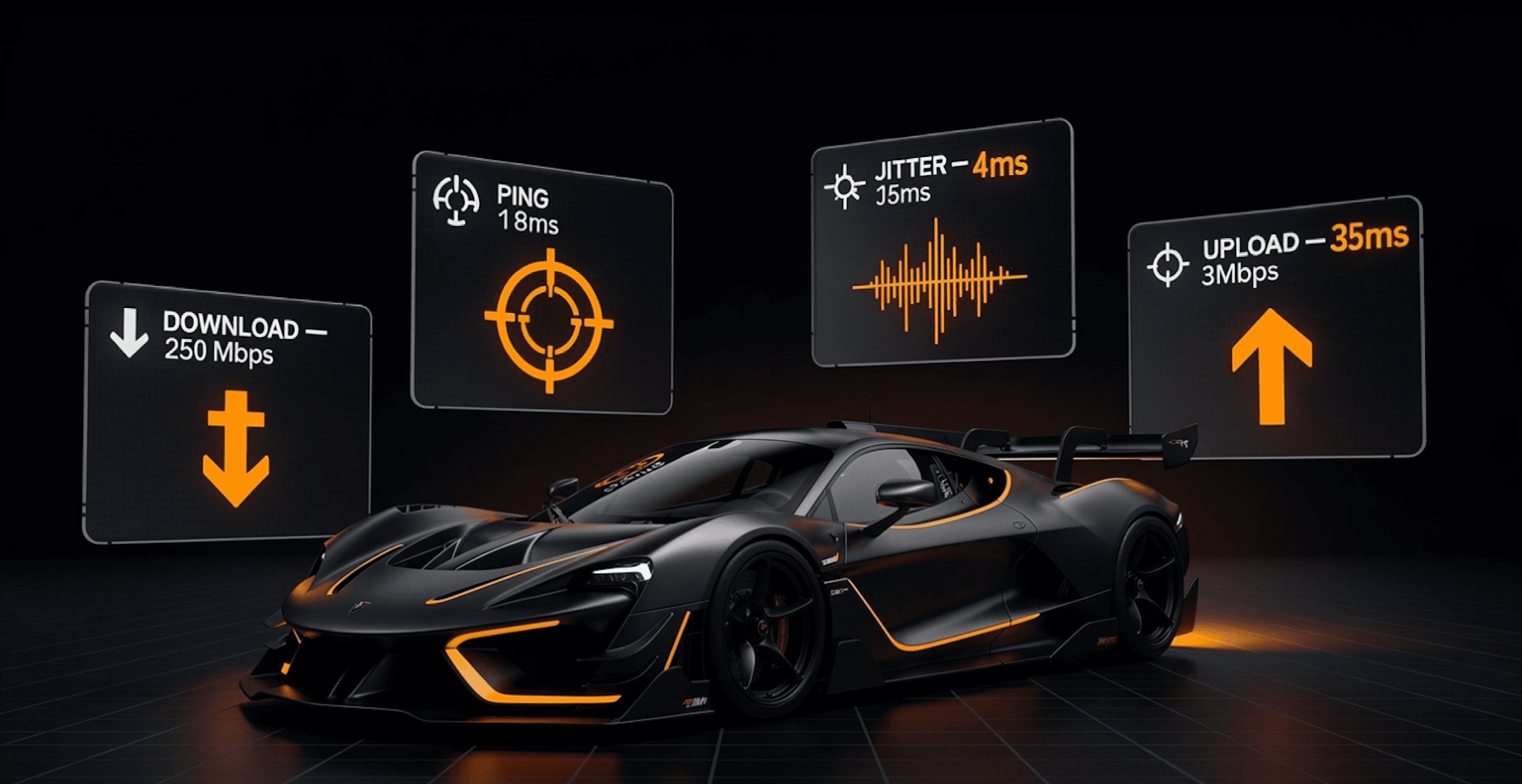
Most gaming lag guides tell you to upgrade to 200 Mbps. They're solving the wrong problem. Here's what the numbers from 40,000+ real VROOOMS races actually show — and the two metrics that matter far more than your download speed.
You ran a speed test. It said 250 Mbps. You're still rubber-banding in Warzone. Your teammate with 50 Mbps plays smoother than you.
You've been lied to — not maliciously, but consistently — by every "best internet speed for gaming" guide that leads with megabits per second.
Here's the truth: download speed is almost irrelevant to how your game actually feels. The metrics that control your gaming experience are ping and jitter — and most gamers have never heard of the second one.
This guide explains all four numbers your connection produces, which ones actually matter for gaming, what "good" looks like for each, and how to run a test that gives you a real picture of your connection's gaming performance — not just a big number to screenshot.
The four numbers every gamer needs to understand
When you run a proper internet speed test, you get four readings. Most people look at the first one and close the tab. That's the mistake.
Download speed (Mbps)
Download speed measures how fast data moves from the internet to your device, expressed in megabits per second.
For gaming, this number matters less than any guide will tell you. Online games do not stream massive amounts of data continuously the way Netflix does. A multiplayer game session typically uses between 40–150 Mbps of download bandwidth — and that's for the most data-hungry titles like Call of Duty or Fortnite with 4K texture packs.
What this means practically: if you have more than 25 Mbps, your download speed is almost certainly not causing your lag. Upgrading from 100 Mbps to 1 Gbps will not make your game run smoother. Not one millisecond smoother.
Minimum for gaming: 3–5 Mbps per player Comfortable: 25 Mbps+ Beyond which it stops mattering: 50 Mbps
Upload speed (Mbps)
Upload speed measures how fast data travels from your device to the internet.
For gaming, upload is more important than download, but still not the critical factor. Your game constantly sends your position, actions, and inputs to the game server. If your upload is consistently below 1 Mbps, you'll have problems. Most broadband connections have 5–20 Mbps upload, which is comfortably sufficient.
Upload becomes critical when you add streaming to the equation. If you're playing and streaming to Twitch simultaneously, you need at least 6 Mbps dedicated upload for the stream alone — so plan accordingly.
Minimum for gaming only: 1–3 Mbps Minimum for gaming + streaming: 8–12 Mbps
Ping (ms)
Now we're getting to what actually matters.
Ping — also called latency — measures the round-trip time for a signal to travel from your device to the game server and back. It's measured in milliseconds (ms). Lower is better. This is the number that determines whether your shots register when you pull the trigger.
When you fire a weapon in a multiplayer game, your game client sends a packet to the server saying "player fired at position X." The server processes it, compares it with the state of the game, determines whether the shot hit, and sends the result back to you. All of that happens in your ping time.
At 15ms, that round trip is nearly instantaneous. At 150ms, there's a noticeable gap between your input and the game's response. At 250ms, the game is unplayable for anything competitive.
What good ping looks like by game type:
| Game type | Excellent | Good | Acceptable | Problematic |
|---|---|---|---|---|
| Competitive FPS (CS2, Valorant) | <15ms | 15–35ms | 35–60ms | >60ms |
| Battle royale (Warzone, Fortnite) | <20ms | 20–50ms | 50–80ms | >80ms |
| MMORPGs (WoW, FFXIV) | <40ms | 40–80ms | 80–120ms | >120ms |
| Racing games | <30ms | 30–60ms | 60–100ms | >100ms |
| Turn-based / casual | <100ms | 100–150ms | 150–200ms | >200ms |
Data from VROOOMS Speed Board race results — aggregated from 40,000+ browser-based speed tests. Players in the Copper League (0–15 Mbps) frequently have better ping than Gigabit Grand Prix racers because fiber infrastructure in dense cities doesn't automatically mean proximity to game servers.
Jitter (ms) — the metric almost nobody talks about
This is the hidden killer. If ping is your average latency, jitter is how much that latency fluctuates from moment to moment.
A connection with 40ms ping and 2ms jitter is extremely stable. Every packet takes roughly the same time to arrive. The game feels consistent.
A connection with 40ms ping and 35ms jitter is a nightmare to play on, even though the average looks identical. Packets are arriving at wildly different intervals — some at 20ms, some at 75ms — which the game interprets as stuttering, rubber-banding, and delayed shot registration even when your "ping looks fine."
This is why your 250 Mbps connection might feel worse than your friend's 50 Mbps line. If your ISP has high jitter on that node — which is common with cable infrastructure during peak hours — no amount of bandwidth will fix it.
What good jitter looks like:
- Under 5ms — Excellent. Near-fiber quality consistency.
- 5–15ms — Good. Acceptable for all but the most competitive play.
- 15–30ms — Moderate. You'll notice occasional stutters in fast-paced games.
- 30–50ms — Poor. Frequent rubber-banding even at normal ping.
- Above 50ms — Severe. Connection is fundamentally unstable for gaming.
According to VROOOMS Speed Board data, jitter above 20ms is the single most common cause of the "fast internet but still lagging" complaint. Cable connections in particular show high jitter spikes during 7–10pm local time — peak congestion hours — regardless of advertised speeds.
Why "fast internet" doesn't fix gaming lag
The confusion comes from conflating two completely different things: bandwidth and latency.
Bandwidth (download/upload speed) determines how much data can flow through your connection simultaneously. Latency (ping and jitter) determines how quickly any individual packet makes the trip.
Think of it like a highway. Bandwidth is the number of lanes. Latency is the speed limit. A 10-lane motorway with a 20 mph speed limit moves cars slowly. A two-lane country road with a 70 mph limit gets each car to its destination faster.
Your game doesn't care how many lanes your connection has. It cares how fast each packet of data makes the round trip to the server. That's ping. And it cares how consistent those trips are. That's jitter.
Three specific reasons why high-speed connections can still produce bad gaming experiences:
Distance to server.The physical distance between you and the game server is a hard floor on your ping. Light travels through fibre at roughly 200,000 km/second. London to a New York game server introduces at least 35ms of unavoidable physics-level delay. No ISP can fix that. That's why connecting to a local server always beats a "faster" distant one.
Bufferbloat.This is the technical term for what happens when your router's buffer fills up during high-traffic periods and starts introducing artificial queuing delay. Bufferbloat can add 100–400ms of jitter-inducing latency on connections that test at 200 Mbps+ under normal conditions. It's extremely common in consumer routers and almost never mentioned in ISP marketing.
Congestion on the last mile. Cable internet is a shared medium. The coaxial cable serving your neighbourhood is shared among your neighbours. During peak hours, that shared segment becomes a bottleneck — not because you have slow internet, but because everyone is using it simultaneously. This is why many gamers on 300 Mbps cable plans have worse evening ping than rural DSL users.
How to actually test your gaming connection
A standard speed test that only shows you Mbps is insufficient for gaming diagnosis. You need all four metrics — download, upload, ping, and jitter — measured under realistic conditions.
Here's what a proper gaming connection test should tell you:
- Your download speed — to confirm you have enough bandwidth
- Your upload speed — especially important if you stream
- Your ping — measured to a nearby server, not necessarily the fastest-responding one
- Your jitter — the metric that most standard tests don't even show you
The VROOOMS speed test measures all four simultaneously using live HTTPS requests — the same protocol your game client uses for real-world traffic. Run it at different times: once at 2pm and once at 8pm. If your jitter nearly doubles in the evening, you've just diagnosed a congestion problem that no bandwidth upgrade will solve.
Test your gaming connection now on VROOOMS →
After your test, VROOOMS matches your connection to a Race Room sorted by speed class — so you can see how your connection compares against real connections from around the world in your same performance tier. It's the only speed test that shows you where your connection sits in a live competitive context.
What your speed test results are actually telling you
Once you have your four numbers, here's how to read them honestly.
Scenario 1: High download, high jitter
Example: 300 Mbps download, 15 Mbps upload, 45ms ping, 40ms jitter
Diagnosis: Classic cable congestion pattern. Your bandwidth is more than sufficient but your connection is unstable. You likely experience this mainly in the evenings. The fix is not a faster internet plan — it's either a better router with QoS (Quality of Service) settings, a wired Ethernet connection instead of WiFi, or switching to a fibre provider with lower contention ratios.
Scenario 2: Low download, low jitter
Example: 35 Mbps download, 8 Mbps upload, 18ms ping, 3ms jitter
Diagnosis: This is a good gaming connection despite the "slow" headline number. Low ping and near-zero jitter mean every packet is arriving on time and predictably. This connection will perform better in competitive games than most 500 Mbps cable lines. A gamer with this profile would place well in the VROOOMS Fibre Sprint class despite technically having a "slower" connection.
Scenario 3: High ping, low jitter
Example: 180 Mbps download, 20 Mbps upload, 85ms ping, 5ms jitter
Diagnosis: Distance problem. Your connection is stable and consistent, but you're far from your nearest game server. The jitter is excellent — so the connection is healthy — but the physics of distance are adding unavoidable baseline latency. Fix: always select the game server geographically closest to you, not the one with the highest population.
Scenario 4: Low ping, high jitter
Example: 120 Mbps download, 15 Mbps upload, 22ms ping, 45ms jitter
Diagnosis: Bufferbloat or WiFi interference. Your average latency is fine but the variance is severe. This is the most frustrating gaming scenario — your speed test "looks good" but gameplay is erratic. First fix: plug in via Ethernet and retest. If jitter drops significantly, it's WiFi interference or your router's wireless radio. If jitter stays high on Ethernet, it's bufferbloat — look into router firmware (DD-WRT, OpenWrt) or a router with built-in CAKE or fq_codel QoS.
Platform-specific internet requirements for 2026
Different platforms and games have different demands. Here are the numbers that actually matter per platform — all four metrics.
PC gaming (competitive)
Competitive PC gaming — Counter-Strike 2, Valorant, Apex Legends, League of Legends — has the strictest latency requirements of any platform. Tournament players target sub-10ms ping to their regional server. For casual play, under 40ms is comfortable.
Download: 10 Mbps minimum, 25 Mbps comfortable
Upload: 3 Mbps minimum
Ping: Under 40ms for casual, under 20ms for competitive
Jitter: Under 10ms — this matters more on PC than any other platform
Console gaming (PS5, Xbox Series X)
Consoles are slightly more forgiving on raw ping due to better client-side prediction algorithms. But they're more sensitive to jitter during crowded multiplayer sessions.
Download: 10 Mbps minimum; CoD and similar games with large patches need 50 Mbps+ for reasonable patch download times
Upload: 3 Mbps minimum
Ping: Under 60ms for casual, under 30ms for competitive
Jitter: Under 15ms
Cloud gaming (Xbox Cloud, GeForce NOW, PlayStation Now)
Cloud gaming completely inverts the relationship between bandwidth and latency. Because the game is running on a remote server and you're receiving a video stream, you need both sufficient bandwidth AND low latency simultaneously.
Download: 25 Mbps minimum for 1080p, 35 Mbps for 4K — these are real requirements
Upload: 5 Mbps minimum (for controller inputs)
Ping: Under 40ms is essential — above 60ms and input lag becomes perceptible
Jitter: Under 10ms — any variance directly corrupts the video stream
Cloud gaming is the one context where download speed genuinely matters for gaming quality.
Mobile gaming (competitive)
Mobile gaming has exploded in competitive play — PUBG Mobile, Mobile Legends, Clash Royale. Mobile connections are inherently higher jitter than wired connections.
Download: 5 Mbps on cellular is fine
Upload: 1 Mbps minimum
Ping: Under 80ms acceptable; 5G connections regularly achieve 20–30ms
Jitter: The hardest to control on mobile — aim for under 30ms; expect spikes
The WiFi vs Ethernet truth gamers don't want to hear
WiFi is convenient. Ethernet is better for gaming. This isn't a matter of debate.
Modern WiFi 6 and WiFi 7 can match Ethernet for raw bandwidth. They cannot match it for consistent latency. Radio waves compete with neighbouring networks, microwave ovens, Bluetooth devices, and the structural interference of walls and floors. All of that interference introduces jitter.
In VROOOMS Speed Board data, users who test over Ethernet consistently show 30–60% lower jitter than WiFi users on equivalent broadband connections. The ping difference is often small (5–10ms), but the jitter difference is significant.
If you are gaming competitively and experiencing high jitter, the single highest-ROI change you can make before calling your ISP, buying a new router, or upgrading your plan is to run a 10-metre Ethernet cable to your gaming setup. It costs under $15.
If you cannot run Ethernet cable physically, the next best option is a powerline adapter (uses your home's electrical wiring) or MoCA adapter (uses coaxial cable if your home has it). Both substantially outperform WiFi for gaming jitter.
What the VROOOMS Speed Board reveals about real gaming connections
Unlike traditional speed tests that show you a number in isolation, the VROOOMS Speed Board aggregates results from real speed tests measured during live browser races. This gives us a genuinely different dataset from ISP benchmarks or lab tests — it's what connections actually look like under realistic conditions.
A few things the data consistently shows:
Fibre connections do not always mean low ping. Fibre users in rural areas with their signal routed through distant exchanges can have higher ping than cable users in urban areas served by nearby exchanges. Download speed and latency are independent variables.
Peak-hour jitter spikes are near-universal on cable. Across the Speed Board dataset, cable connections show a consistent jitter increase of 15–40ms between 7pm and 10pm local time. The download speed barely drops. The jitter surges. This is the congestion window — and it's why so many gamers report their connection "feeling worse in the evening."
The Copper League (0–15 Mbps) contains some of the best ping times in the dataset. Low-bandwidth DSL connections over short copper loops to nearby exchanges consistently produce 8–15ms ping and sub-5ms jitter. They are terrible for patch downloads and unplayable for cloud gaming — but for a text-efficient online game like competitive chess or turn-based strategy, they're technically superior to many gigabit connections.
You can see where your own connection lands in the Speed Board after running your test. Compare your four metrics against the aggregated results for your connection class — it tells you whether your ISP is performing normally or whether your specific setup has a problem.
View the VROOOMS Speed Board →
How to actually improve your gaming connection
If your test results are showing problems, here's the priority order for fixes — from free to expensive.
Step 1: Switch to Ethernet (free–$15)
As covered above. Eliminates WiFi jitter. Do this first before anything else.
Step 2: Restart your router properly (free)
Not just the "restart" button — unplug it from power for 60 seconds. This clears the buffer tables that cause bufferbloat to accumulate over time. Many gamers notice significant jitter improvement after a proper power cycle. Schedule this weekly.
Step 3: Update your router firmware (free)
Manufacturers ship QoS improvements in firmware updates that many users never apply. Check your router manufacturer's website. Some updates specifically address bufferbloat with better queue management algorithms.
Step 4: Enable QoS / prioritise gaming traffic (free)
Most modern routers have a Quality of Service (QoS) setting that lets you prioritise specific devices or traffic types. Set your gaming device to highest priority. This reduces the impact of other household bandwidth usage — streaming, video calls, background downloads — on your gaming latency.
Step 5: Choose the closest game server (free)
Always manually select a game server in your region rather than relying on auto-connect. "Auto" often connects you to the most available server, not the nearest one. In games with manual server selection, check ping to each region before entering a lobby.
Step 6: Check for interference (free)
If you cannot use Ethernet, at minimum switch your WiFi to the 5GHz band (lower interference than 2.4GHz in most environments) and position your router without obstacles between it and your gaming setup. Every wall reduces signal quality.
Step 7: Contact your ISP about line quality (free)
If your jitter is consistently high during specific hours and the above steps don't help, it's congestion on your ISP's local infrastructure — not anything in your home. Contact them. Reference specific times and your jitter readings. Some ISPs will investigate and upgrade local node capacity. Most won't, but it costs nothing to ask.
Step 8: Switch to fibre if available ($30–80/mo)
If cable congestion is your problem and fibre is available in your area, switching is the most reliable long-term fix. Fibre connections have lower contention ratios — fewer customers sharing each segment — and more consistent latency especially during peak hours.
Step 9: Gaming router or modem upgrade ($100–400 one-time)
Routers with dedicated gaming firmware (ASUS ROG, Netgear Nighthawk, or any router running OpenWrt with CAKE QoS) handle traffic queuing more intelligently and produce measurably lower jitter than standard ISP-provided routers. This is a meaningful upgrade if you're stuck on cable with no fibre option.
Run the test that actually diagnoses your gaming connection
If you've read this far, you now know more about your gaming connection than 95% of the guides online will tell you.
The next step is to actually measure it — not with a test that gives you one big number to screenshot, but with a test that shows you all four metrics and puts your connection in context.
VROOOMS measures download, upload, ping, and jitter simultaneously using live HTTPS traffic. After your test, you see all four numbers with plain-English explanations of what each means for gaming. Then, if you want to see how your connection competes in the real world, Race Rooms match you against connections in your speed class from around the world.
It takes 60 seconds. No account. No download. Just your browser.
Test your gaming connection on VROOOMS →
Frequently asked questions
Is 100 Mbps good enough for gaming?
Yes — for the vast majority of gamers, 100 Mbps is more than sufficient. The game itself needs 3–15 Mbps during a session. 100 Mbps is only insufficient if multiple people in your household are simultaneously streaming 4K, video calling, and gaming. What matters far more than whether you have 100 Mbps or 500 Mbps is your ping (under 50ms) and jitter (under 15ms).
Why is my ping good on a speed test but bad in-game?
Speed tests measure ping to a nearby test server, not to your actual game server. Your game server may be in a different city, country, or continent. It's also possible your router introduces additional queuing delay under load (bufferbloat) that only appears during real gaming sessions when multiple data streams are active simultaneously, not during a speed test that runs in isolation.
What is a good jitter for gaming?
Under 5ms is excellent. Under 15ms is good and suitable for all gaming including competitive play. Between 15–30ms you'll notice occasional stutters in fast-paced games. Above 30ms jitter, the connection is fundamentally inconsistent and no bandwidth upgrade will fix it — the problem is elsewhere in the network path.
Does faster internet reduce ping?
Not directly. Ping is determined by physical distance to the server, the quality of the network path between you and the server, and the load on your local network. A 1 Gbps connection and a 50 Mbps connection connecting to the same server from the same location will have nearly identical ping. However, upgrading to fibre often reduces ping indirectly because fibre infrastructure tends to have less congestion and lower contention ratios than cable.
Is WiFi good enough for competitive gaming?
WiFi 6 and WiFi 7 have sufficient bandwidth and often acceptable ping for competitive gaming. The weakness is jitter — wireless connections introduce latency variance that wired connections do not. For casual gaming, WiFi is fine. For competitive play where every millisecond counts, Ethernet is the correct choice. The performance difference shows clearly in VROOOMS jitter measurements — Ethernet connections average 30–60% lower jitter than WiFi on the same broadband plan.
How do I test my ping to a specific game server?
Most games have a built-in ping display (enable it in settings — it's usually called network diagnostics or connection stats). For external testing, VROOOMS' ping test measures your latency using the same HTTPS protocol game clients use. You can also use command-line tools: ping [server IP] on Windows/Mac/Linux gives you raw ICMP ping to any server address.
All statistics cited from VROOOMS Speed Board data, aggregated from real speed tests run during browser races. Data reflects real-world connection performance under live conditions, not laboratory benchmarks.